SAS (Statistical Analysis System) is a software that was originally created in the 1960s. Today, it is widely used by statisticians working in biostatistics and the pharmaceutical industries. Unlike Python and R, it is a proprietary software.
Login Page: https://welcome.oda.sas.com/
Overview of SAS Language
A SAS program is a sequence of statements executed in order.
Keep in mind that:
- Every SAS statement ends with a semicolon
SAS programs are constructed from two basic building blocks: DATA steps and PROC steps. A typical program starts with a DATA step to create a SAS data set and then passes the data to a PROC step for processing.
Example 6.1 (Creating and Printing a Dataset)
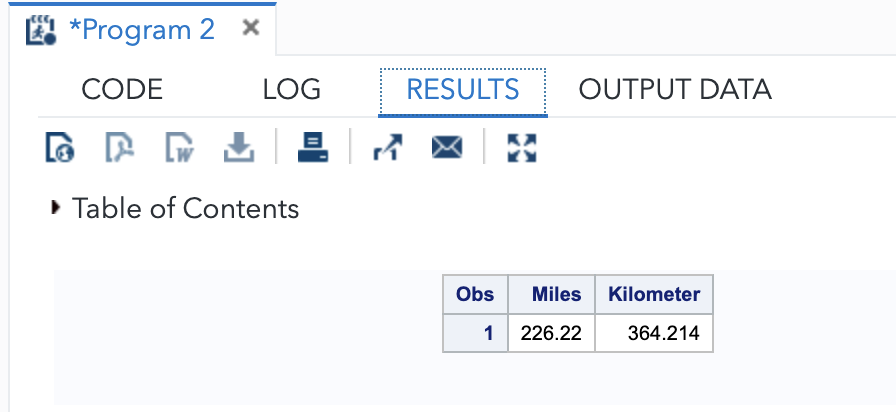
Here is a simple program that converts miles to kilometres in a DATA step and then prints the results with a PROC step:
DATA distance;
	Miles = 226.22;
	Kilometer = 1.61 * Miles;

PROC PRINT DATA=distance;
RUN;
To run the above program, click on the “running man” icon in SAS studio.
Example 6.2 (Creating a Dataset Inline)
The following program explicitly creates a dataset within the DATA step.
/*CREATING DATA MANUALLY:; */

DATA ex_1;
INPUT subject gender $ CA1 CA2 HW $;
DATALINES;
10 m 80 84 a
7 m 85 89 a
4 f 90 86 b
20 m 82 85 b
25 f 94 94 a
14 f 88 84 c
;

PROC MEANS DATA=ex_1;
VAR CA1 CA2;
RUN;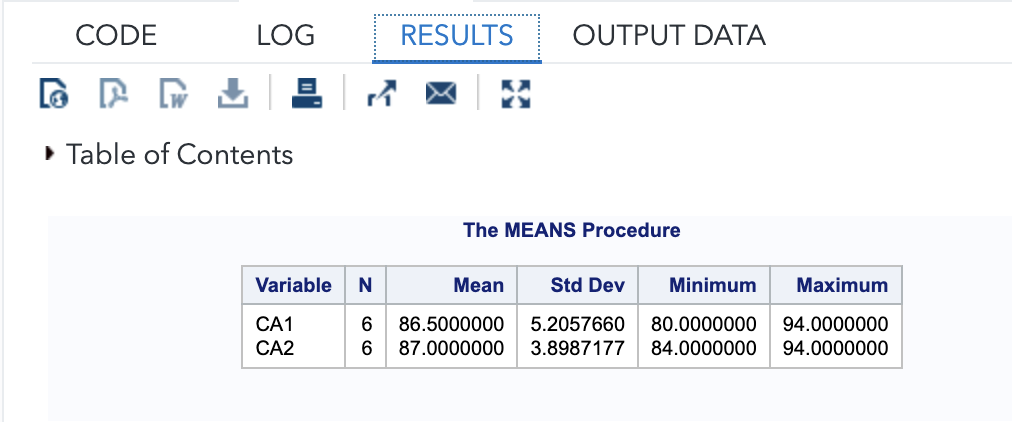
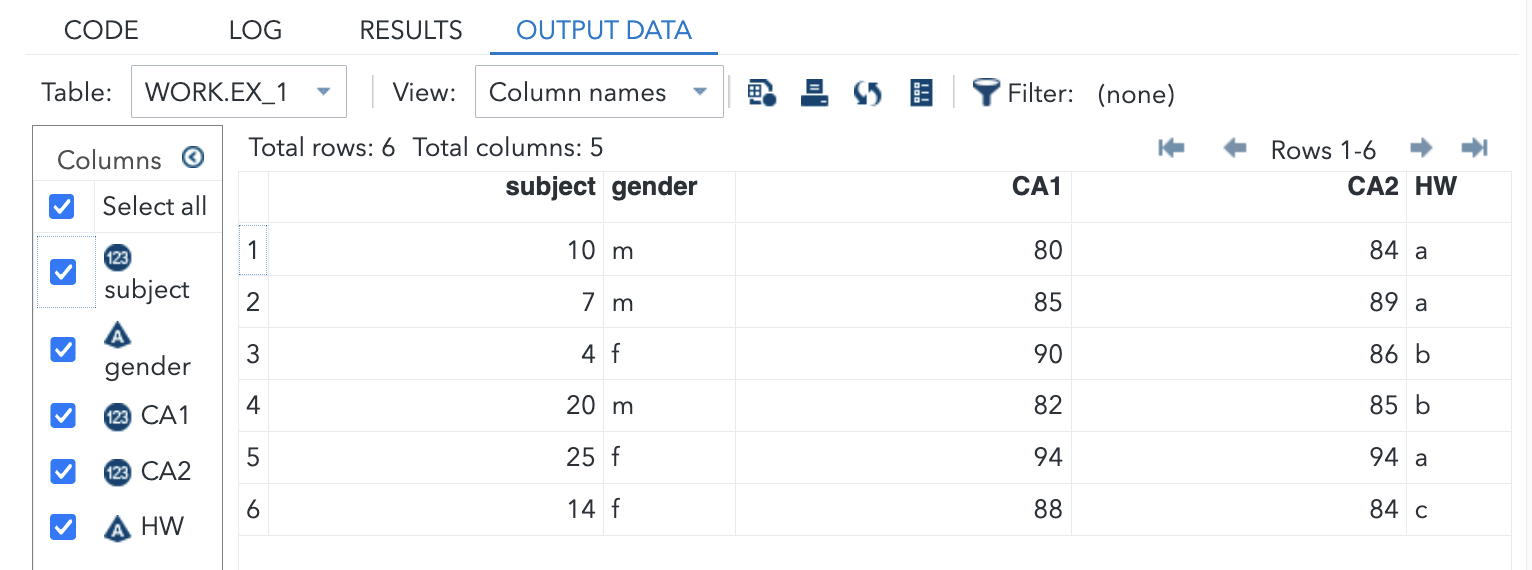
In the statements above, the $‘s in the INPUT statement inform SAS that the preceding variables (gender and HW) are character. Note how the semi-colon for the DATALINES appears after all the data has been listed.
PROC MEANS creates basic summary statistics for the variables listed.
Basic Rules for SAS Programs
For SAS Statements
- all SAS statements (except those containing data) must end with a semicolon ;
- SAS statements typically begin with a SAS keyword (DATA, PROC)
- SAS statements are not case sensitive, that is, they can be entered in lowercase, uppercase, or a mixture of the two
- example: SAS keywords (DATA, PROC) are not case sensitive
| DATA steps | PROC steps |
|---|---|
| begin with DATA statements | begin with PROC statements |
| read and modify data | perform specific analysis or function |
| create a SAS dataset | produce reports or results |
- a delimited comment begins with a forward slash-asterisk and ends with an asterisk-forward slash. all text within the delimiters is ignored by SAS.
For SAS Names
- all names must contain between 1 and 32 characters
- the first character appearing in a name must be a letter (A, B, … Z, a, b, … z) or an underscore.
- subsequent characters must be letters, numbers or underscores.
- that is, no other characters, such as $, %, or & are permitted
- blanks also cannot appear in SAS names
- SAS names are not case sensitive
- SAS is only case sensitive within quotation marks
For SAS Variables
- if the variable in the INPUT statement is followed by a dollar sign ($), SAS assumes this is a character variable.
- otherwise, the variable is considered as a numeric variable
Reading Data into SAS
Example 6.3 (Bike Rentals)
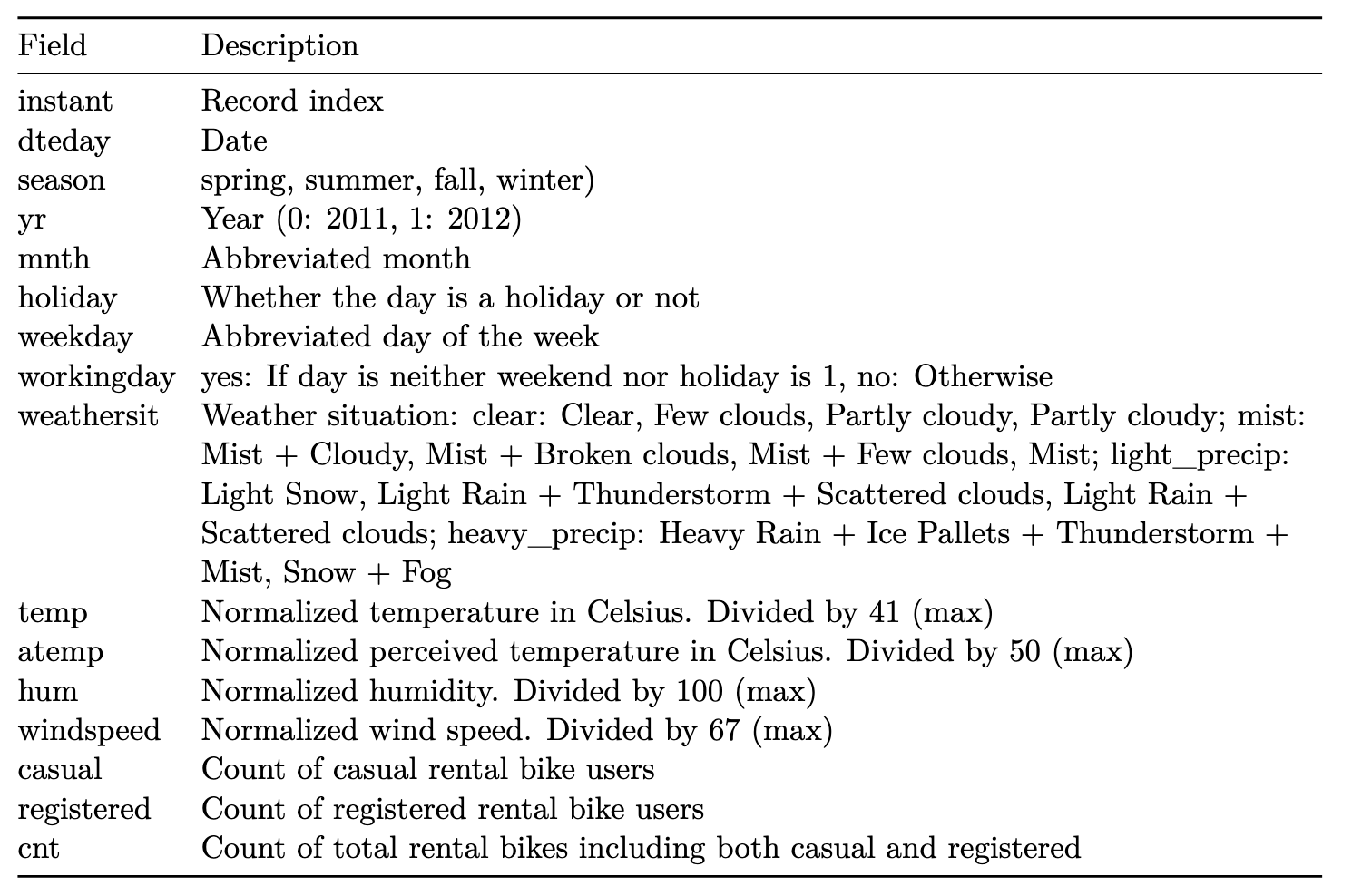
Uploading and Using Datasets
- Create a new library. In SAS, a library is a collection of datasets. If you already have a library created, you can simply import datasets into it. The default library on SAS is called WORK. However, the datasets in WORK will be purged every time you sign out. Hence it is better to create a new, dedicated library for this course.
- Import your dataset (csv, xlsx, etc.) into the library.
- After this, the data will be available for use with the reference name (library-name).(dataset-name)
Summarising Numerical Data
Most of the SAS routines we are going to work with can be found in the “Tasks and Utilities” section.
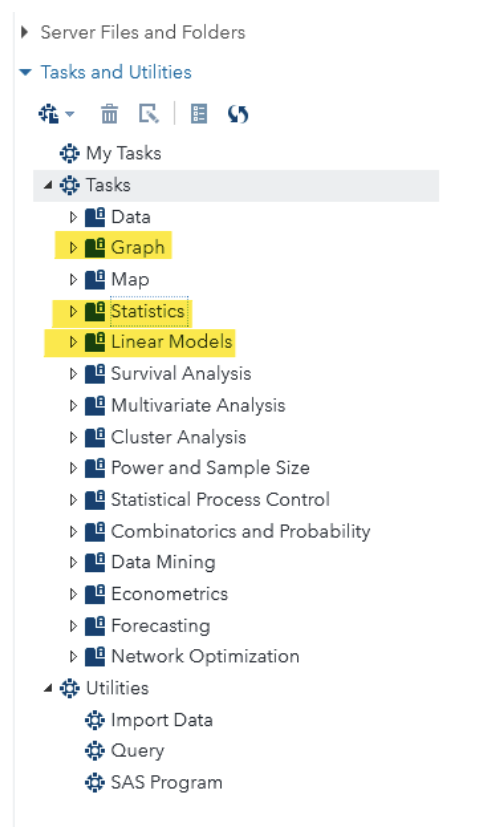
Numerical Summaries
Example 6.4 (5-number summaries)
Under Tasks, go to Statistics > Summary Statistics.
Select cnt as the analysis variable and season as the classification variable
Under the options tab, select the lower and upper quartiles, along with comparative boxplots.
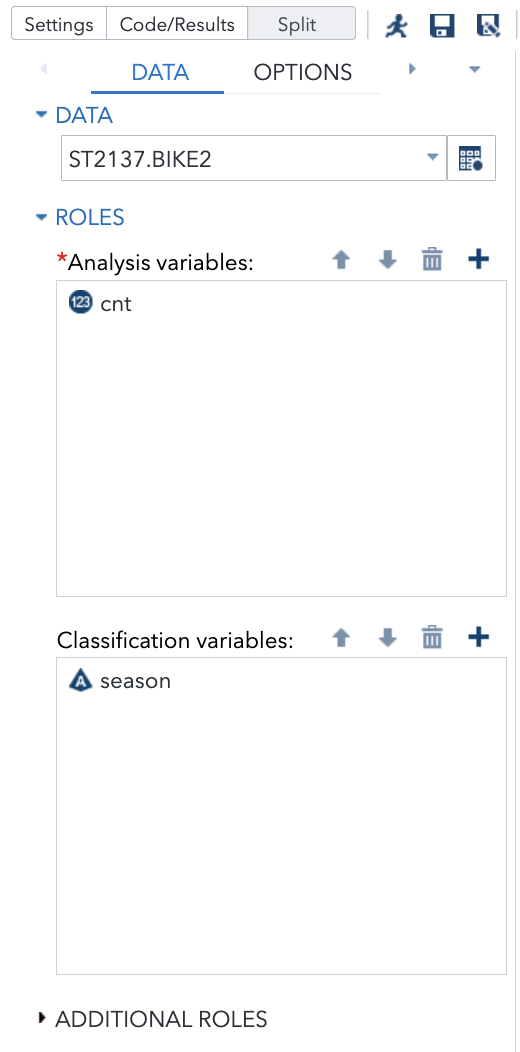
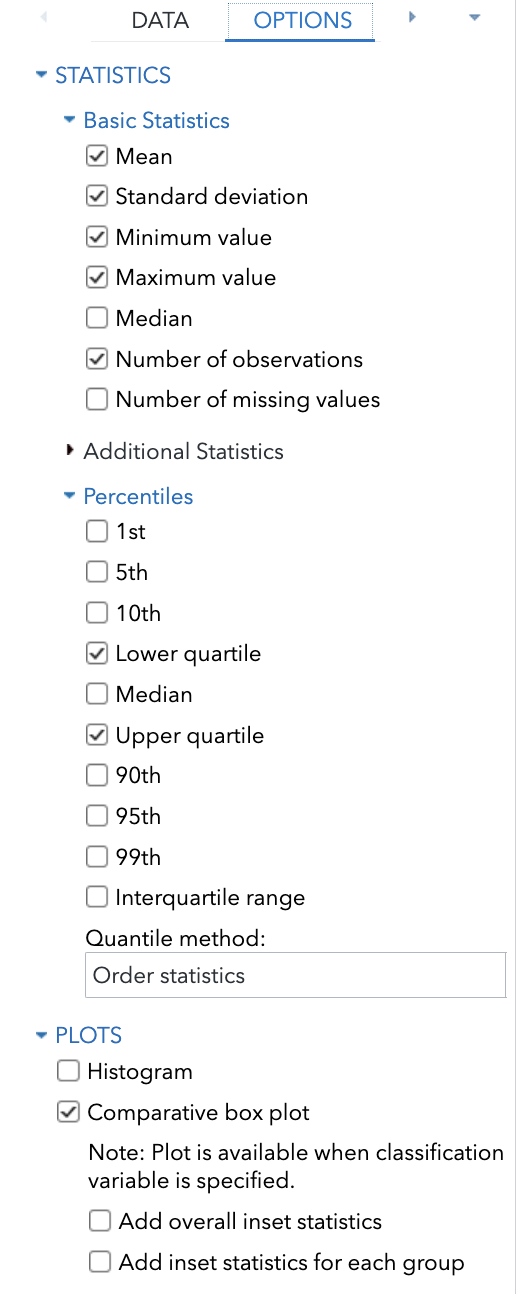
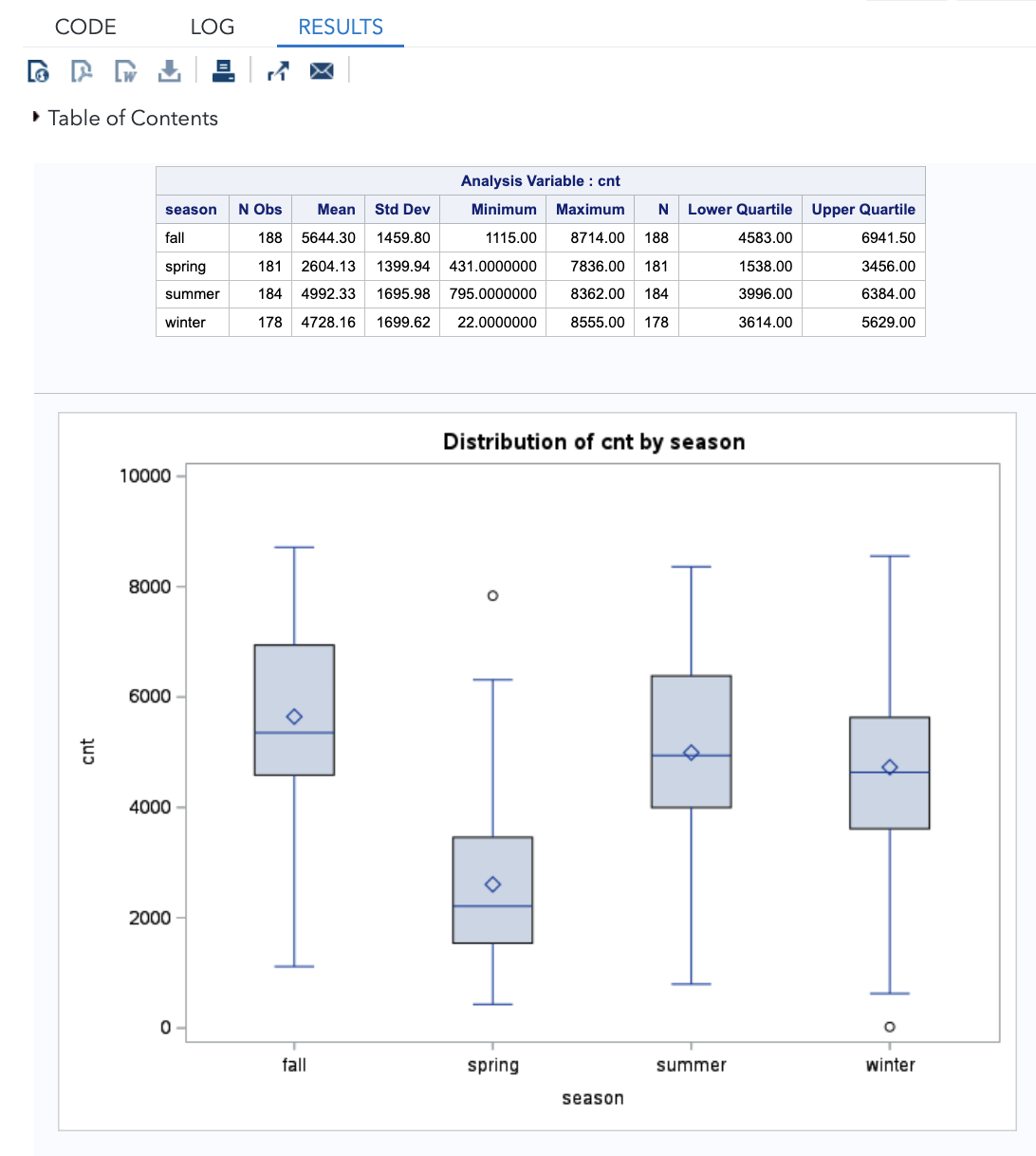
We observe that the median count is highest for fall, followed by summer, winter and lastly spring. The spreads, as measures by IQR, are similar across the seasons, approximately 2000 users. In the middle 50%, the count distribution for spring is the most right-skewed.
Scatter Plots
Example 6.5 (Casual vs Registered Scatterplot)
To create a scatterplot in SAS, go to Tasks > Graphs > Scatter Plot.
Specify casual on the x-axis, registered on the y-axis and workingday as the Group.
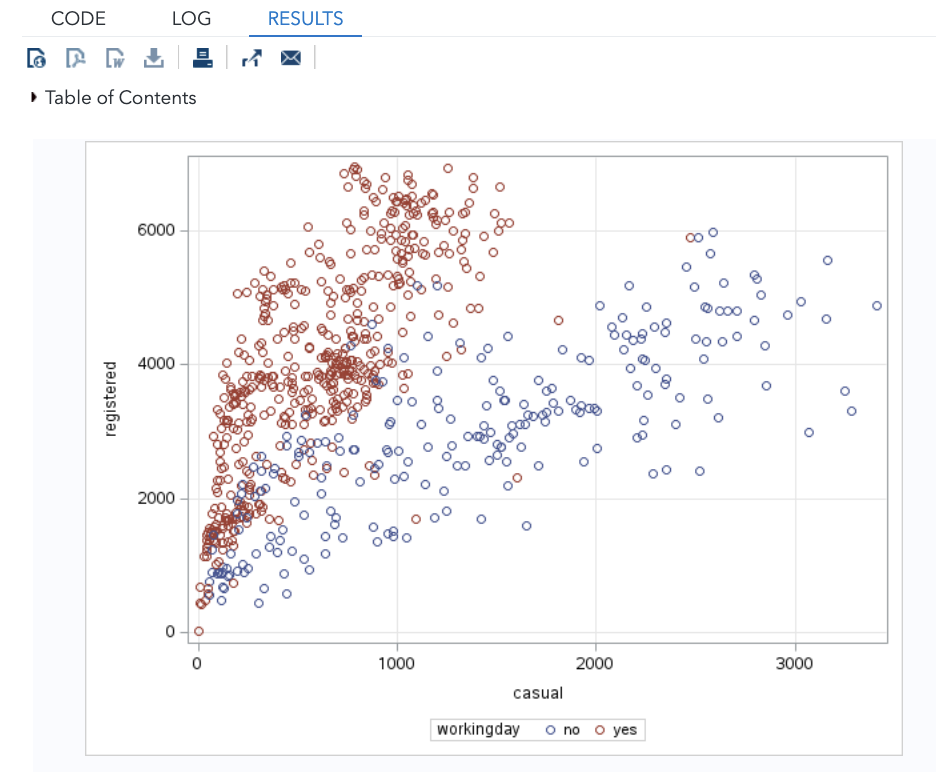
We can see that there seem to be two different relationships between the counts of casual and registered users. The two relationships correspond to whether it was a working day or not.
Histograms
Example 6.6 (Casual Users Distribution)
To create a histogram, go to Tasks > Graphs > Histogram.
Select casual as the analysis variable, and workingday as the group variable. I also turned on Normal density curve under “appearance”
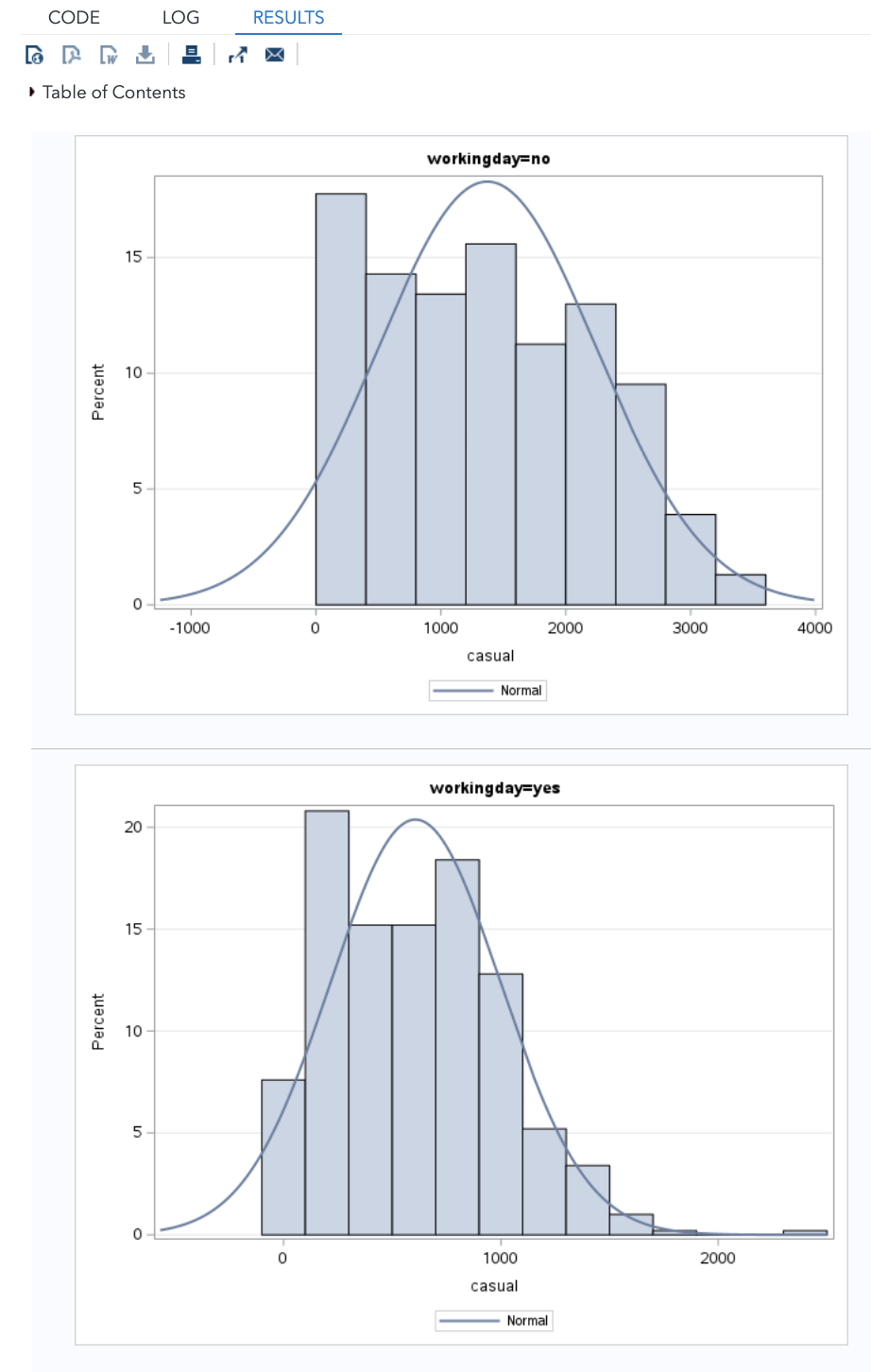
We can see that the distribution is right-skewed in both cases. However, the range of counts for non-working days extends further, to about 3500.
Boxplots
Example 6.7 (Boxplots for Casual Users, by Season)
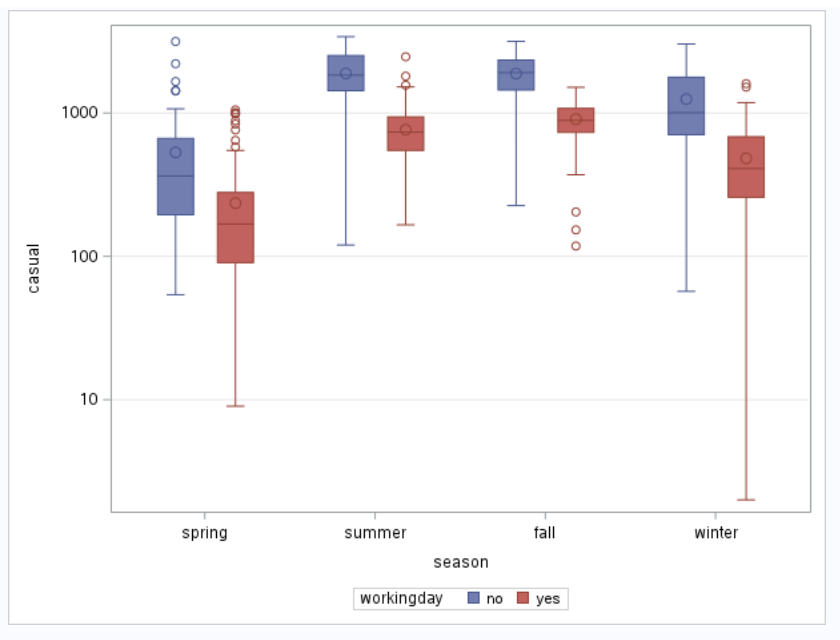
In Example 6.4, we observed that total counts vary by season, and in Example 6.6, we observed that working days seem to have fewer casual users. Let us investigate if this difference is related to season.
To create boxplots, go to Tasks > Box Plot.
Select casual as the analysis variable, season as the category and workingday as the subcategory.
To order the seasons according to the calendar, add this line to the code:
proc sgplot data=ST2137.BIKE2;
	vbox casual / category=season group=workingday grouporder=ascending;
	xaxis values=('spring' 'summer' 'fall' 'winter');
	yaxis grid;
run;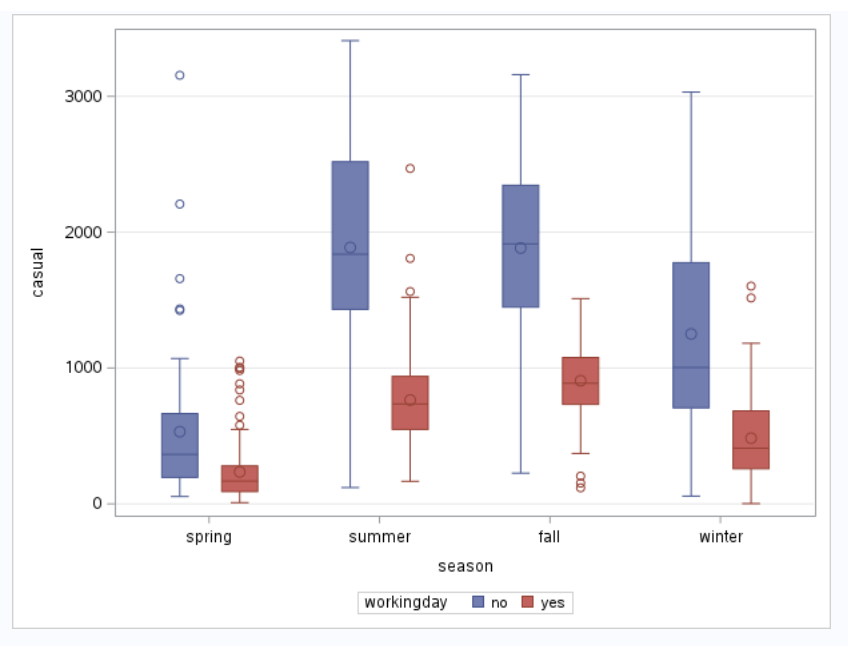
Now try the same plots, but on the log scale (modify the APPEARANCE tab and re-run).
QQ-plots
Example 6.8 (Normality Check for Humidity)
To create QQ-plots, we go to Tasks > Statistics > Distribution Analysis.
Select hum for the analysis variable. Under options, add the normal curve, the kernel density estimate, and the Normal quantile-quantile plot.
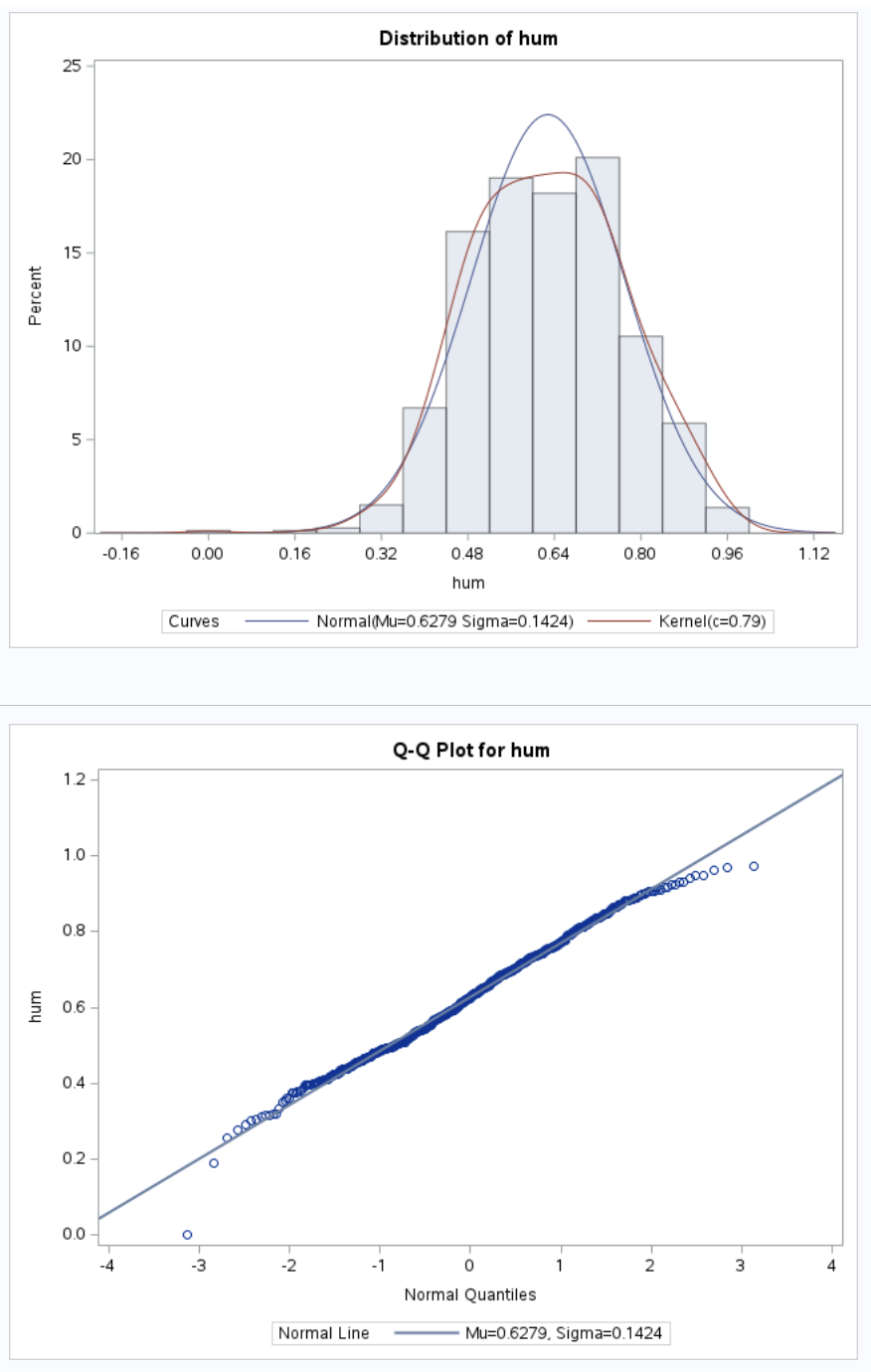
Top: Histogram for humidity, Bottom: QQ-plot for humidity
The plot shows that humidity values are quite close to a Normal distribution, apart from a single observation on the left.
Categorical Data
We now turn to categorical data methods with SAS. We return to the dataset on student performance.
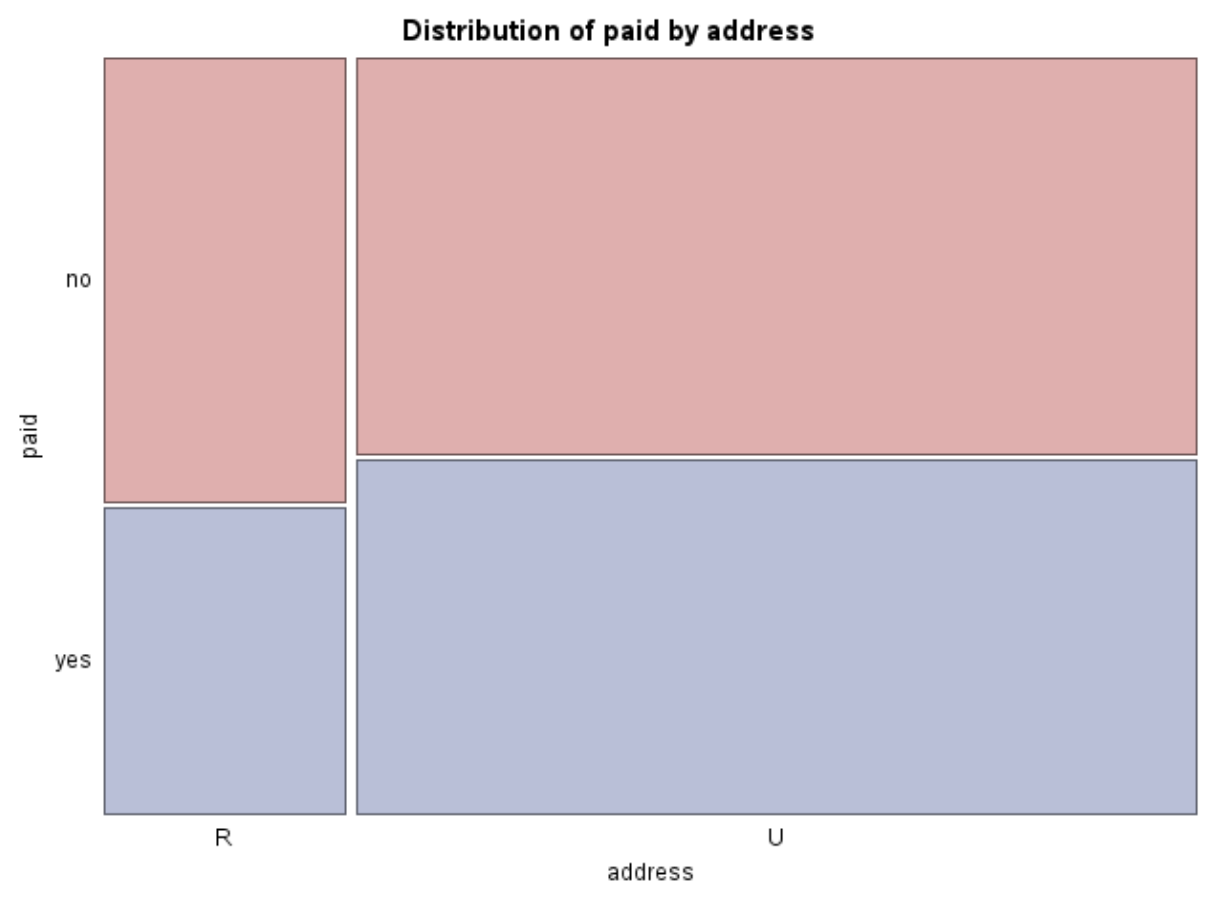
Example 6.9 (Chi-square Test for Independence)
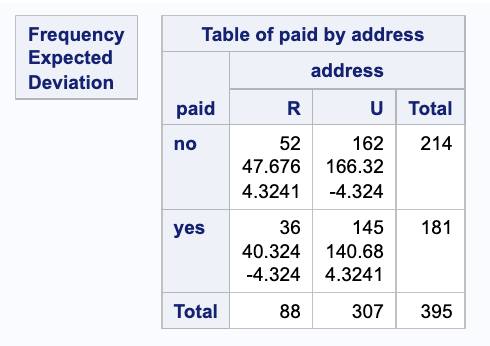
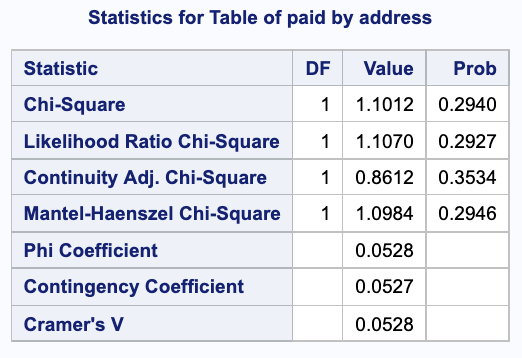
For a test of independence of address and paid, go to Tasks > Table Analysis and select:
- address as the column variable
- paid as the row variable
- under OPTIONS, check the “Chi-square statistics” box
Example 6.10 (Kendall’s Tau for Walc and Dalc)
Go to Tasks > Tables > Table Analysis
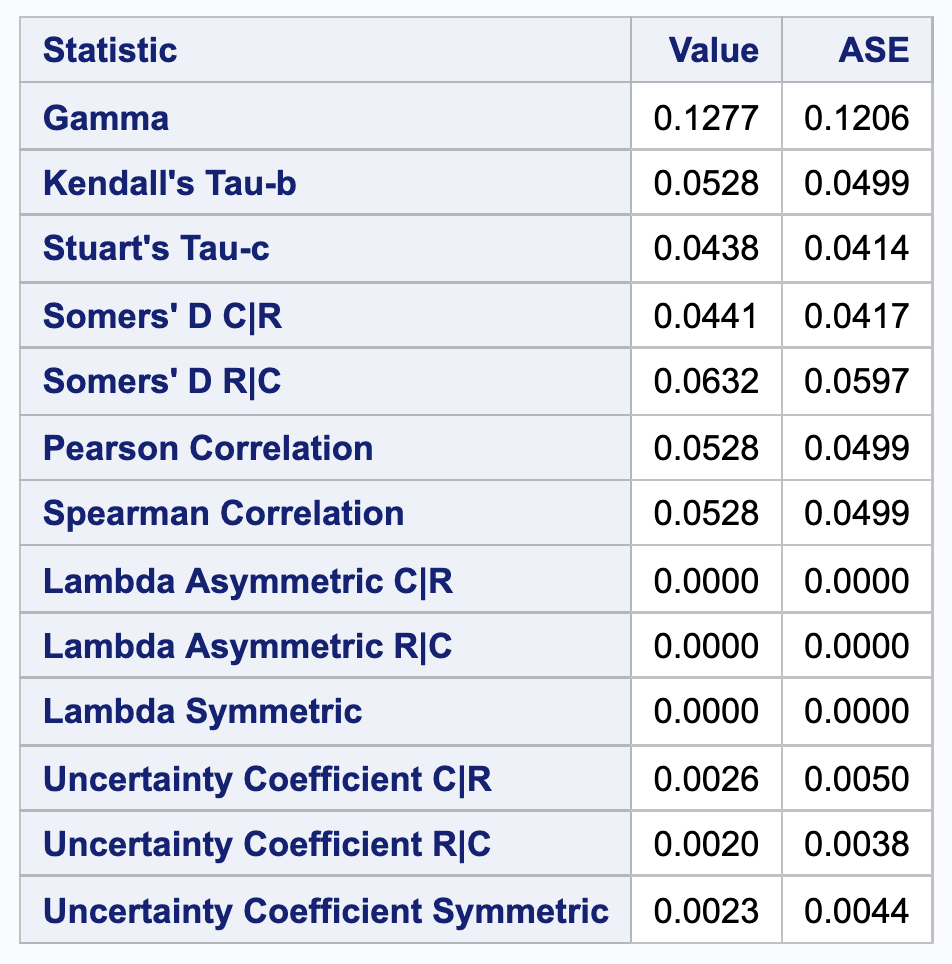
After selecting the two variables, we check the appropriate box to obtain:
You may observe that the particular associations computed and returned are similar to those by the Desc R package that we used in Example 4.10 (Chest Pain and Gender Odds Ratio)